

Wi-Fi Keeps Dropping? 8 Fixes for Slow, Spotty Wi-Fi
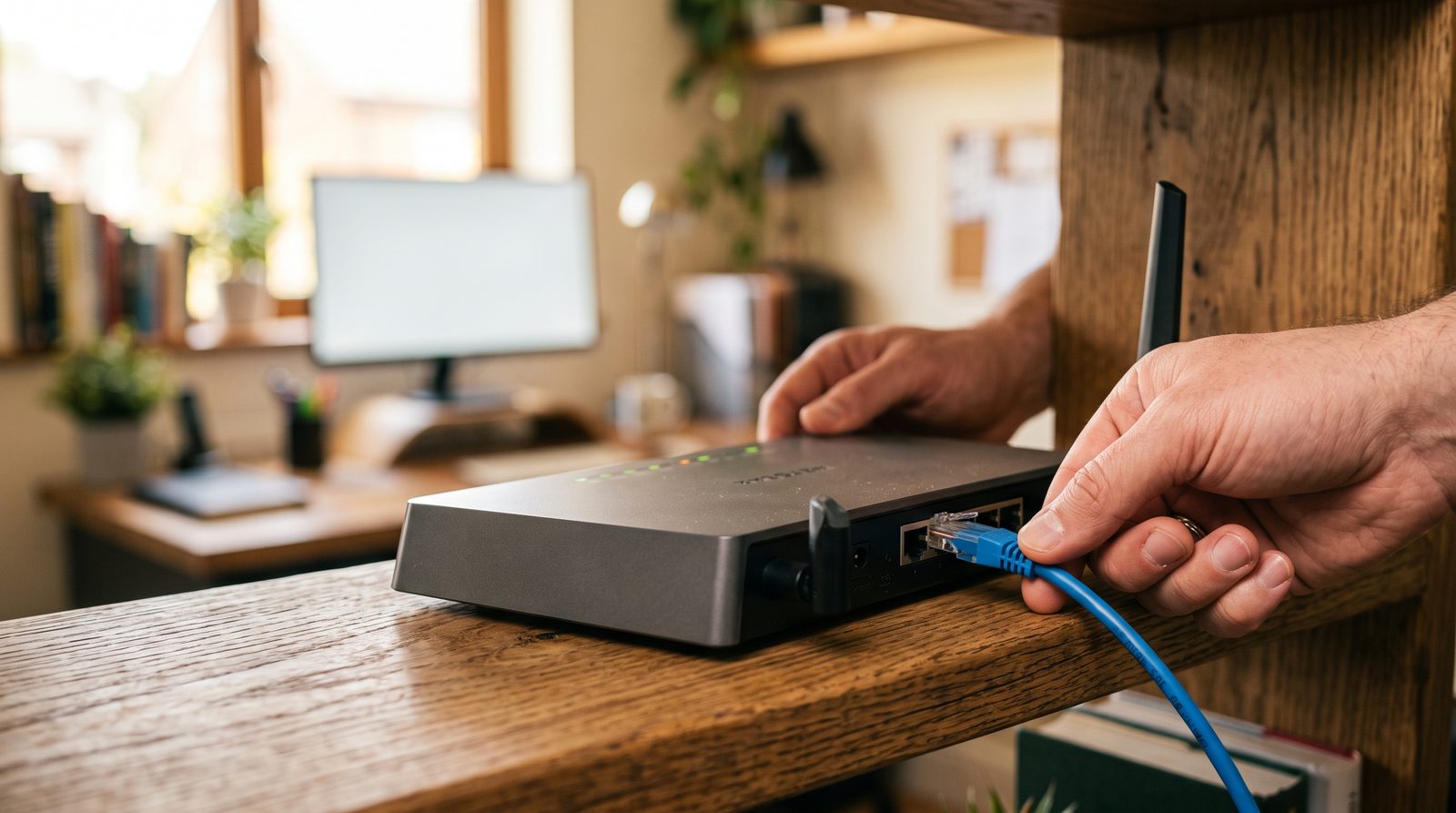
Few things derail a workday like Wi-Fi that keeps cutting out — video calls freezing mid-sentence, card readers timing out, cloud files refusing to sync. The good news: spotty Wi-Fi is one of the most fixable problems in tech, and most of the fixes are free. The honest news: sometimes the real answer is that Wi-Fi was never the right tool for that corner of your building, and we'll show you how to tell the difference.
Work through these in order. Like our slow computer guide, each step also tells you something about what's actually wrong.
1. Reboot the router — the right way
Routers are little computers that run for months without a break, and they accumulate the same clutter any computer does. But order matters: power off the modem and the router both, wait a full 30 seconds (this forces your internet provider's equipment to start a fresh session), power the modem on first, wait for its lights to settle, then power the router on.
If this fixes it for a week and then problems return, you don't have a mystery — you have a router that's aging out or overheating. Keep reading.
2. Check where the router lives
Wi-Fi is radio, and radio hates obstacles. A router shoved in a metal cabinet, behind a TV, in a closet, or at the far end of the building is fighting physics all day. Here in the Coachella Valley it fights harder than most places: our buildings lean on concrete block, thick stucco over wire mesh, and energy-efficient low-E glass — all of which eat Wi-Fi signal for breakfast.
The fix: get the router central, elevated, and in open air — on top of a shelf beats inside it. If your office is long and narrow or split by block walls, no single router placement will cover it all; that's an access-point conversation (see fix 8).
3. Mind the heat
The desert special, part two. Routers are rated for roughly 100°F ambient — and the utility closets, garages, and sun-baked back rooms where routers get stashed around here blow past that all summer. An overheating router doesn't usually die outright; it drops connections, slows down, and reboots itself at random, which looks exactly like "bad internet."
The fix: touch test. If the router is hot enough that you wouldn't hold it against your cheek, move it somewhere conditioned, get it out of direct sun, clear its vents, and don't stack equipment on top of it. We've solved "months of flaky Wi-Fi" more than once by relocating a router eight feet.
4. Count your devices
The router your internet provider handed you five years ago was built for a dozen devices. Now count yours: phones, laptops, printers, cameras, TVs, thermostats, door sensors, the credit card terminal. Small offices routinely run 30–50 devices, and consumer-grade routers quietly fall apart at that load — especially at peak hours.
The fix: prune what you can (old devices still joined to the network count against you), and if your device count has outgrown a consumer router, a business-grade router or mesh/access-point setup is the durable answer, not another cheap router.
5. Escape the congestion
Wi-Fi shares airspace with your neighbors. In a business park or shopping center, a dozen networks can be shouting over each other on the same channel. The 2.4GHz band — the one with the longest range — is also the most crowded, and it's shared with microwaves, Bluetooth, and older cordless phones.
The fix: in your router's app or admin page, make sure both bands are on and prefer 5GHz for anything that matters (it's faster and far less congested, at the cost of range). Most modern routers auto-pick channels; if yours allows it, a reboot re-scans for the cleanest channel — another reason fix 1 sometimes "just works."
6. Update the router's firmware
Router firmware updates fix stability bugs and — just as important — security holes. A router that's years behind on firmware is both flakier and a favorite way for attackers to get inside small business networks.
The fix: open the router's app or admin page and look for a firmware/update section; newer routers can auto-update, and that setting is worth turning on. If your router is so old the manufacturer stopped publishing updates, that's your sign it's replacement time — and worth a quick read of our take on network security while you're at it.
7. Rule out the internet itself
Before blaming Wi-Fi, make sure the problem isn't upstream. Plug a laptop directly into the router with an Ethernet cable and run a speed test. If the wired connection is also slow or dropping, your Wi-Fi is innocent — the issue is your modem, your provider, or your plan. That's a support call to your ISP, armed with the wired test result so they can't blame your equipment.
If wired is fast and Wi-Fi is slow, you've confirmed it's a wireless problem — which the other seven fixes here address.
8. Know when the answer is a wire
Here's the part most articles won't tell you: some things should never be on Wi-Fi in the first place. Desktop workstations that don't move, printers, servers, cameras, point-of-sale terminals — every one of those you move to a wired connection gets faster and more reliable and frees up airtime for the devices that genuinely need wireless. And if your building has dead zones that no router placement cures, the professional fix is wired access points in the right locations, fed by properly run cable.
That's exactly what our Cable Install & Management service does: we run clean, labeled CAT Ethernet from your network hub to where your business actually needs it, and place access points so coverage is designed rather than hoped for. It's a one-time fix for problems people otherwise fight monthly for years.
When to stop and call
- Drops at the same time every day — often interference or heat on a schedule; a professional survey finds it fast.
- Fine near the router, useless two rooms away — a coverage design problem, not a settings problem.
- Devices you don't recognize on your network — change the Wi-Fi password immediately and treat it as a security issue, not a speed issue.
- Business runs on it — if a Wi-Fi drop stops payments, phones, or patient check-ins, your network deserves business-grade equipment and monitoring so problems get caught before opening time.
We design, cable, and manage networks for businesses across the Coachella Valley from our home base in Palm Springs — and monitor them around the clock so you're not the one who discovers the outage. Get in touch or call (760) 325-8990, and if you want the full picture of your network's health and security, start with the $99 Vulnerability Assessment.