

Why Is Your Computer So Slow? 7 Fixes to Try Before You Call Us
"My computer is so slow" is the single most common complaint we hear at Omega — from law offices in Palm Springs to retail counters in Palm Desert to home offices all over the Coachella Valley. Here's the honest truth most repair shops won't lead with: a lot of slow computers can be fixed in ten minutes by their owners, for free.
So before you pay anyone (including us), work through these seven fixes in order. Each one also tells you something about what's actually wrong — and at the end, we'll cover the warning signs that mean it's time to stop DIY-ing and get help before a slow computer becomes a dead one.
1. Restart it — actually restart it
Yes, everyone says this. Here's why it matters more than you think: Windows has a feature called Fast Startup that means clicking "Shut down" often doesn't fully shut anything down. Your computer can go weeks without a true restart, quietly accumulating memory leaks and stuck processes.
The fix: click Restart, not Shut Down. Restart always does a full reset. If your computer is noticeably faster afterward and stays that way for days, you're done. If it's slow again by tomorrow, something else on this list is the real culprit.
2. Trim your startup programs
Every program that launches itself at boot — updaters, assistants, "helpers" you didn't ask for — steals memory and disk time forever after. Most computers we service have a dozen or more of these, and their owners recognize maybe half.
The fix on Windows: press Ctrl + Shift + Esc to open Task Manager, choose the Startup apps tab, and disable anything you don't recognize as essential. (On a Mac: System Settings → General → Login Items.) Be bold — disabling a startup entry doesn't uninstall anything, it just stops it from launching automatically. Then restart.
3. Free up disk space — especially if the drive is nearly full
When your main drive gets close to full, everything slows down: Windows needs free space to breathe, and updates start failing on top of it. Under 10–15% free is the danger zone.
The fix: open Settings → System → Storage and let Windows show you what's eating the drive. The usual suspects: the Downloads folder, old video files, and the Recycle Bin nobody ever empties. Storage Sense (on the same screen) can clean temporary files automatically. If the drive is full of things you actually need — that's not a cleanup problem, that's a "you need a bigger drive or cloud storage" conversation, and it's a cheap one.
4. Check for heat and dust — the desert special
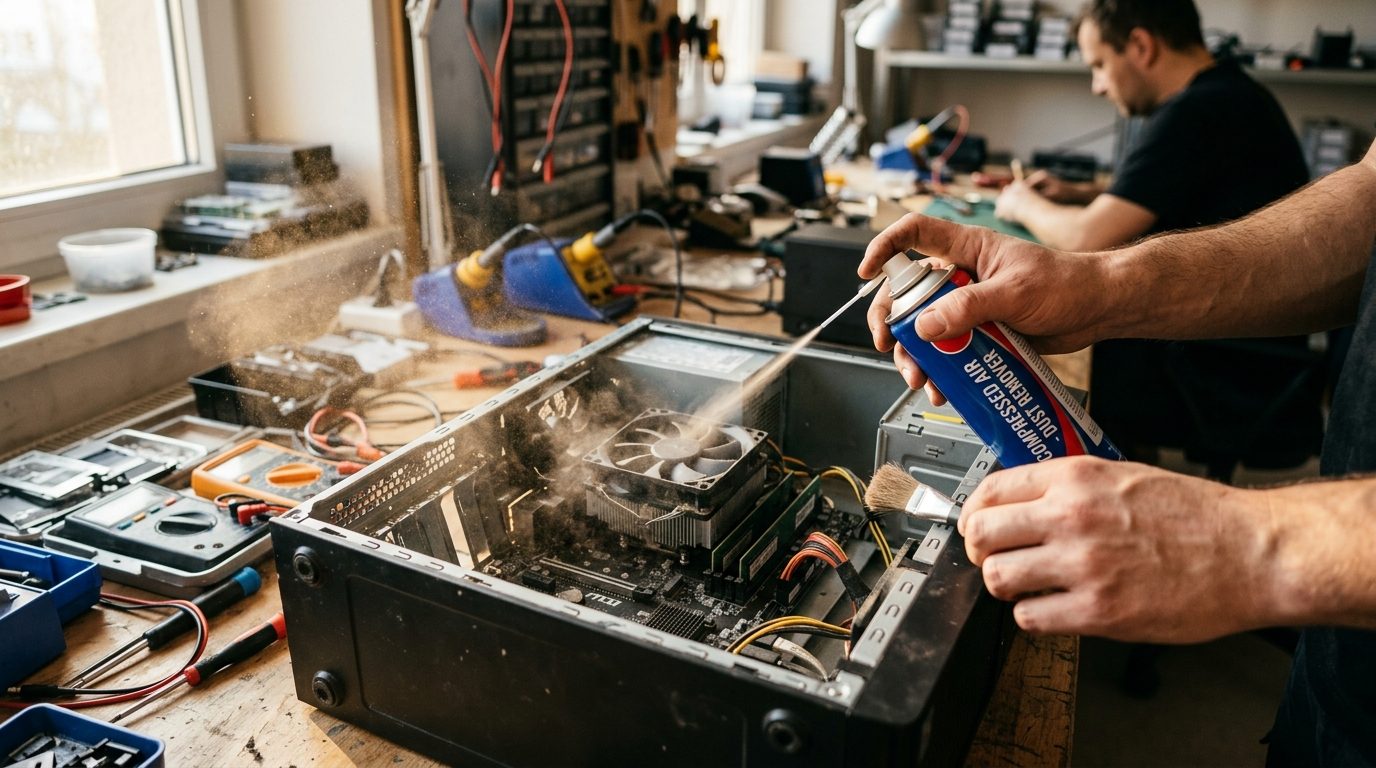
This one hits harder in the Coachella Valley than almost anywhere else. Computers slow themselves down on purpose when they overheat — it's called thermal throttling, and it's the machine protecting itself. Between our summer temperatures and the fine desert dust that coats every fan and heatsink, we see throttled computers here constantly. The telltale signs: fans roaring, a hot case, and a computer that starts fast in the morning but crawls by afternoon.
The fix: make sure vents aren't blocked (laptops on blankets and couches are the classic offender), keep towers off carpeted floors, and blast the vents with a can of compressed air — outside, with the computer off. If the fans are loud even at idle or the machine shuts itself off on hot days, the dust is likely inside on the heatsink where canned air from outside won't reach — that's a fifteen-minute professional cleaning that can genuinely feel like a new computer.
5. Scan for malware — even if "it's probably nothing"
Not all malware announces itself with ransom notes. Plenty of it just quietly mines cryptocurrency, injects ads, or runs your machine as part of someone's botnet — and the only symptom is that everything is mysteriously slow.
The fix: run a full scan with Windows Security (built in, and genuinely decent these days): Settings → Privacy & security → Windows Security → Virus & threat protection → Scan options → Full scan. If it finds anything beyond tracking cookies — or if your browser's homepage or search engine changed without your permission — treat it seriously. A business computer with confirmed malware needs more than a quick-scan-and-delete; you need to know what it touched. That's exactly what our $99 Vulnerability Assessment was built for.
6. Install the updates you've been postponing
We know — the update pop-up always appears at the worst moment. But a computer that's months behind on updates is often slow because of it: half-downloaded updates chew on the disk in the background over and over, and old drivers make hardware misbehave.
The fix: Settings → Windows Update → install everything, restart as many times as it asks, and repeat until it says you're up to date. Do it at the end of the workday and let it run. Bonus: this is also the single cheapest security improvement available to you, because most real-world attacks exploit holes that patches closed months earlier.
7. Tame your browser
If the computer is fine until you open your browser, the browser is the problem. Forty open tabs, a bar full of extensions, and years of accumulated junk will bring any machine to its knees — the browser is the heaviest program most people run all day.
The fix: close tab hoards (bookmark them into a folder if it hurts), then go to your browser's extensions page and remove anything you didn't deliberately install and use. Coupon toolbars, "free PDF converters," and weather widgets are performance parasites — and some are spyware wearing a costume.
When to stop and call a professional
DIY has limits, and pushing past them can turn a cheap fix into lost data. Stop and get help if you notice any of these:
- Clicking, grinding, or whirring from inside the machine. That can be a hard drive dying. Every hour it keeps running risks your files — back up what you can immediately and stop using it.
- Random shutdowns or blue screens, especially on hot days — potential failing hardware, cooked by heat.
- It slowed down suddenly, overnight rather than gradually — sudden change usually means something specific happened: a failing part, a bad update, or an infection.
- A malware scan found something real on a computer you use for business, banking, or client data.
- You did all seven fixes and it's still slow. At that point the answer is either a hardware bottleneck (often fixable affordably — an SSD upgrade in an older machine is the best money in computing) or something deeper that diagnostics will find.
That's exactly what our Computer Diagnostic, Clean-Up & Repair service is for: we find the actual cause instead of guessing, tell you plainly whether the machine is worth fixing, and never sell you a repair a free fix would have solved. We're based in Palm Springs and serve businesses and home offices across the Coachella Valley.
Slow computer driving you crazy? Reach out or call (760) 325-8990 — the diagnosis is honest, and so is the advice.